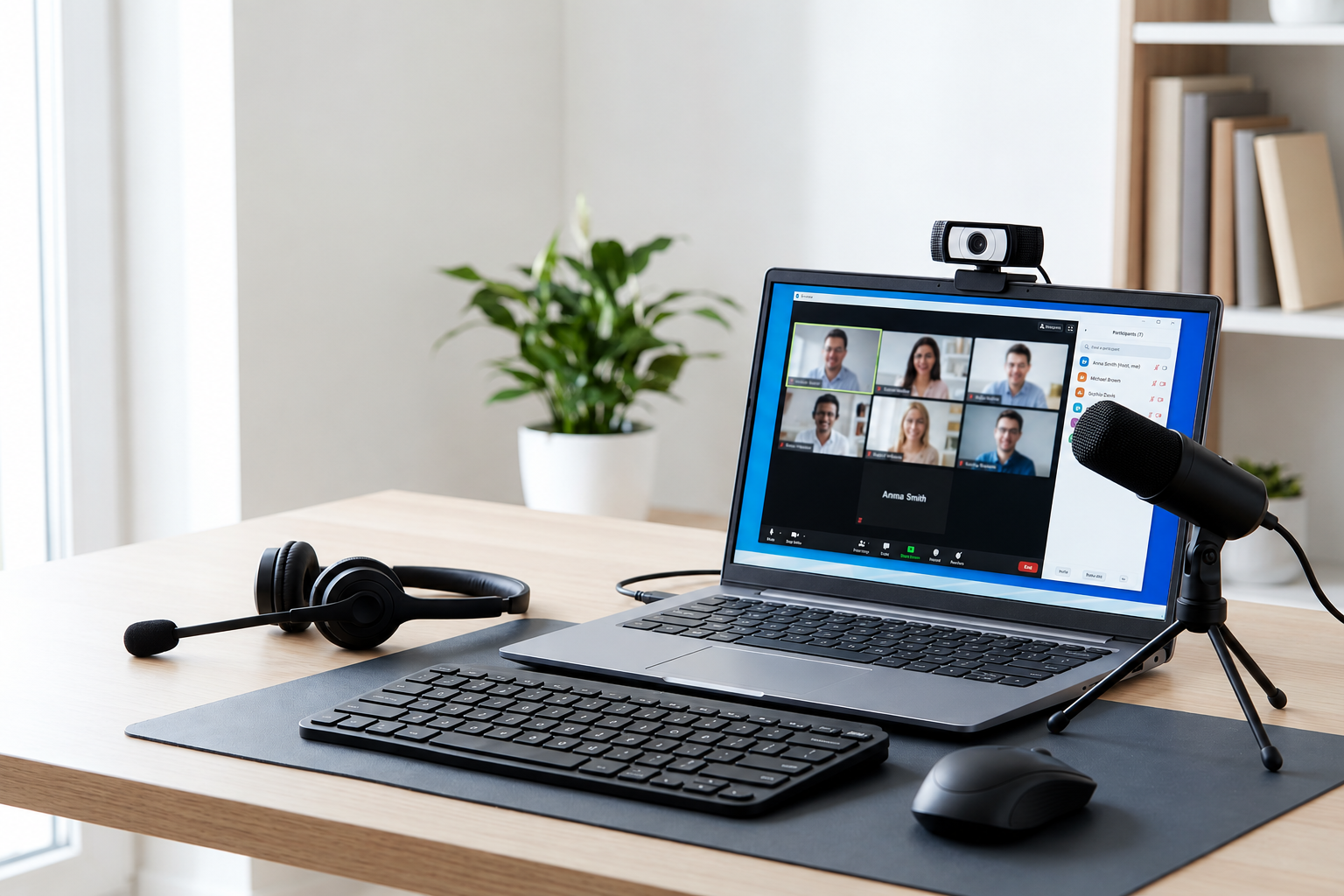
Employees rely on input devices throughout the workday for data entry, cursor control, voice input, video input, scanning, authentication, and barcode or card reading. Keyboards and mice support everyday navigation, while webcams, microphones, scanners, and specialized readers help teams communicate, capture information, and complete role specific tasks.
These devices may look like small workstation accessories, but they directly affect speed, accuracy, communication, and employee experience. Poor or incompatible input devices can slow work, create support issues, and make routine tasks harder than they need to be.
For IT teams, the challenge is not only providing these devices, but choosing the right ones for each role and managing them consistently across employees and locations.
What are computer input peripherals
Computer input peripherals are devices that send data, commands, or signals into a computer. They allow employees to type, click, scan, speak, record, authenticate, and control digital systems during daily work.
Common examples include keyboards, mice, webcams, microphones, scanners, barcode readers, card readers, biometric devices, and drawing tablets.
Unlike output devices, which present information back to the user, input devices send information into the system. This distinction becomes clearer when the two categories are compared directly.
Input peripherals vs output peripherals
Input and output peripherals support different parts of the employee computer experience. Data, commands, and signals are entered into a computer through input peripherals, while output peripherals display, play, or present information back to the user.
For example, a keyboard is an input peripheral because it sends typed information into the system. A monitor is an output peripheral because it displays the result of that activity on screen.
| Input peripherals | Output peripherals |
| Send information, commands, or signals into a computer | Present information from a computer to the user |
| Help employees type, click, scan, speak, record, or control systems | Help employees see, hear, print, display, or receive information |
| Used to enter data, control applications, join meetings, and capture information | Used to review work, listen to audio, print documents, and share information |
| Examples include keyboards, mice, webcams, microphones, scanners, and barcode readers | Examples include monitors, printers, speakers, projectors, and digital displays |
For the broader category that includes input, output, storage, and connectivity devices, see our guide to computer system peripherals.
Understanding this difference helps IT teams select the right equipment for each type of work. The next step is looking at the main input device categories employees use every day.
Types of input peripherals used at work
Different input devices support different tasks. Some are essential for nearly every employee, while others serve specific communication, security, creative, or operational needs.
Keyboard and pointing devices
Keyboards support typing, shortcuts, data entry, and system commands, while mice and trackpads help employees navigate applications and select information.
Stylus pens and drawing tablets support more precise input. Designers, product teams, and creative employees may use them for drawing, annotation, or visual work that requires more control than a standard mouse.
Audio and video input devices
Microphones and webcams support meetings, interviews, onboarding sessions, training, and customer conversations. For distributed teams, they play an important role in communication because employees rely on them throughout the workday.
Headsets with microphones combine audio input and output in one device. Standardizing these setups can reduce common meeting problems such as poor microphone quality or inconsistent compatibility.
Data capture and specialized input devices
Scanners, barcode readers, card readers, and biometric devices support workflows where employees need to capture information quickly or verify identity.
For example, logistics teams may use barcode readers to record inventory movements, while finance teams may use scanners for document processing. Security teams may rely on card readers or biometric devices for controlled access.
These categories cover the main ways employees send information into their systems. However, their value becomes clearer when matched with actual workplace use.
Common examples of computer input peripherals
Most employees use more than one input peripheral during a normal workday. The right combination depends on the role, work environment, and tasks the employee needs to complete.
Common input peripherals by workplace use
| Input peripheral | Workplace use | Common team |
| Keyboard | Typing, shortcuts, data entry | All teams |
| Mouse or trackpad | Navigation, selection, workflow control | All teams |
| Webcam | Video calls, interviews, onboarding | Sales, HR, customer success |
| Microphone | Voice input, meetings, recordings | Remote teams, support, sales |
| Scanner | Document capture and digitization | Finance, HR, operations |
| Barcode reader | Inventory and shipment data capture | Warehouse, logistics, retail |
| Card reader | Identity, access, and payment workflows | Security, finance, operations |
| Biometric device | Authentication and controlled access | Security, regulated teams |
| Stylus or drawing tablet | Precision input and creative work | Design, product, creative teams |
For example, a finance employee may rely on a keyboard and mouse for heavy data entry, while a customer success employee may depend more on a webcam and microphone for daily calls.
Meanwhile, warehouse or logistics teams may use barcode readers to capture inventory information quickly and reduce manual entry. These differences show why input devices should match the work employees actually perform.
Why computer input peripherals matter in the workplace
Input peripherals shape how employees interact with their computer systems, so poor device quality or missing equipment can create daily friction. They influence accuracy, communication, comfort, and how quickly employees can complete routine work.
Reason 1: They improve data entry speed
Reliable keyboards, mice, trackpads, and other input devices help employees enter information and control applications faster, especially in roles that rely heavily on spreadsheets, forms, or business systems.
Reason 2: They support clear communication input
Webcams, microphones, and headsets help employees communicate clearly during meetings, calls, interviews, and training. Reliable input devices also reduce technical interruptions for remote and hybrid teams.
Reason 3: They reduce manual entry errors
Scanners, barcode readers, and card readers capture information directly, reducing the need for manual entry and helping teams improve accuracy in finance, logistics, retail, and operations.
Reason 4: They improve comfort and accessibility
Ergonomic keyboards, specialized mice, touch devices, and voice input options can make computer use more comfortable and accessible for employees who interact with input devices throughout the day.
Reason 5: They simplify IT support and standardization
Standardizing approved input devices helps IT reduce compatibility issues, troubleshoot problems faster, and maintain consistent replacement options across teams and locations.
How IT teams should manage input peripherals
Input devices become harder to manage when employees work across different roles and locations. IT teams can keep them consistent by focusing on three practical areas:
- Standardize input devices by role: Define approved keyboards, webcams, headsets, scanners, and other devices based on employee needs. This makes procurement more predictable and reduces incompatible setups.
- Track ownership and replacement history: Record who has important or higher value input devices and when they are replaced. This gives IT better visibility for support, budgeting, and refresh planning.
- Support remote employees with approved setups: Give remote employees clear device options instead of relying on individual purchases. Standard models make troubleshooting and replacement easier across locations.
These practices give IT a clearer foundation for choosing the right input devices for each employee.
How to choose input peripherals for employees
Choosing input peripherals should start with how employees work. The right devices should match their role, remain comfortable to use, work with existing systems, and be easy to replace when needed.
Match devices to role and workload
Choose input devices based on the employee’s daily tasks. For example, finance teams may need reliable keyboards and mice, while designers may need drawing tablets and warehouse teams may depend on barcode scanners.
Prioritize comfort and accessibility
Employees may use keyboards, mice, and other input devices for hours each day. Ergonomic options and accessible input methods can make work more comfortable and reduce friction.
Check compatibility and communication needs
Make sure devices work with company laptops, software, ports, and operating systems. For employees who spend significant time in meetings, also consider webcam, microphone, and headset quality.
Consider security and replacement availability
Some roles may require card readers or biometric devices for authentication. IT should also check vendor availability, warranty support, and replacement lead times so broken devices can be replaced quickly.
These factors help IT choose input peripherals that are practical for employees and easier to support over time.
Input peripherals as part of IT lifecycle management
Input peripherals should follow a simple lifecycle alongside the rest of the employee workstation. IT does not need a complex process for every small accessory, but important and reusable input devices should remain visible from purchase through recovery.
The main steps include:
- Procure approved devices based on role, compatibility, and company standards
- Assign devices to employee records so IT knows who has each item
- Replace broken or incompatible devices when they affect productivity or support
- Recover reusable equipment during offboarding when the device has enough value or useful life to justify collection
This approach helps IT maintain better visibility while avoiding unnecessary purchases. It also makes input devices easier to manage as teams grow across locations.
Esevel helps companies manage employee devices and peripherals together through connected procurement, deployment, tracking, support, and recovery workflows. This can help distributed teams keep approved workstation equipment consistent while reducing manual coordination.
FAQs
What are computer input peripherals
Computer input peripherals are devices that send data, commands, or signals into a computer. Common examples include keyboards, mice, webcams, microphones, scanners, barcode readers, card readers, and biometric devices.
What is the difference between input and output peripherals
Input peripherals send information into a computer, while output peripherals present information back to the user. A keyboard is an input device, while a monitor is an output device.
Why are computer input peripherals important at work
Computer input peripherals affect data entry, navigation, communication, accuracy, comfort, and access to systems. The right devices help employees work more efficiently and reduce support issues.
How should companies choose input peripherals
Companies should choose input devices based on employee roles, workload, comfort, compatibility, communication needs, security requirements, and replacement availability.
How should IT teams manage input peripherals
IT teams should standardize approved input devices, track important equipment, support compatible setups, replace broken devices, and recover reusable equipment when employees leave.
Build better workstations with managed input devices
Input peripherals shape how employees enter data, communicate, navigate systems, and complete everyday work. Selecting the right devices by role can improve productivity while reducing compatibility and support problems.
As teams grow across locations, IT also needs a consistent way to procure, assign, replace, and recover these devices. Esevel helps distributed companies manage employee devices and peripherals through connected procurement, deployment, tracking, support, and recovery workflows.
A more structured approach helps employees get the input equipment they need while giving IT better control over workstation standards across the organization.

Maytiska Omar Maytiska is an experienced content writer and blog specialist with 4+ years of expertise in creating engaging, SEO-driven content. She focuses on IT and digital topics, turning complex ideas into clear, reader-friendly insights. Her work helps position Esevel as a trusted voice in the digital space.